¶ Pharos Mobile Print
The mobile print service allows staff to administer print actions for members and allows members to upload files and images to the print server from systems that are not connected locally.
For a list of issues relating to mobile printing, sign-in to see Known Issues.
¶ Login
- Direct a user to the CNRL website's homepage, search for “cnrl” in Google
- Click Mobile Printing
- On the following page, click the big yellow printer button
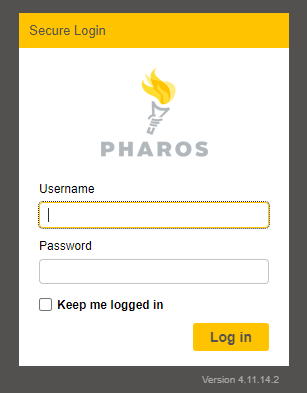
- This will load the following login form - a user can either login with their library card details or a temporary login used for computer access
- Upload the document(s) to the Pharos print service. See below in the troubleshooting section if the file fails to upload.
- As a staff member, in the Pharos Print Centre, send the print job(s) to the publicly accessible printer
¶ Photocopying
You need to click the ‘Home’ button to navigate to the copy function.
If the copy button isn't visible for a logged in member card (or visitor card):
- Check that the card has at least $0.20 else the copy function does not become available.
- If money has been added manually, ensure it was not added to an alias within the Pharos MyPrintCenter console.
¶ Troubleshooting
¶ Failed to upload
Some files (particularly some PDFs) could have embedded data that seems to interfere with the upload to the Pharos print service and subsequently flags them as failed.
The workaround for this is to open the document on the mobile device and save it to a new file. Uploading the copy rather than the original.
Unfortunately, many mobile devices make this difficult and it's necessary to use a combination of sharing and printing to file to create a copy.
Note: Mobile devices will have slightly different user interfaces between types and even versions of the same type, but the examples below give an idea of the process involved.
¶ Android Example
- Open the document and touch the Share icon

- Touch the Print icon
- Next to Select a printer choose Save as PDF
- Click Print/Save as PDF and save it to a new file on the device
- Upload this version of the PDF to Pharos
¶ iPhone Example
- Open the document and touch the Share icon

- Scroll down past the contacts and apps and touch Print - if there's a Save to Files option this may work, otherwise come back and touch Print
- Touch the Share option again
- Scroll down past the contacts and apps again and this time touch Save to Files
- Upload this version of the PDF to Pharos